
How do I use the Virtual PC Lab?
CETS has a number of licensed applications which can only be run from our Windows PC labs. If the labs are full or you want to work remotely, the SEAS Virtual PC lab is a great alternative. It's also useful for Mac or Linux users that occasionally need to use a Windows machine.
You must use software that supports the Remote Desktop Protocol (RDP) to remotely log into a machine in the Virtual PC Lab.
Penn VPN software is required for all RDP connections from networks that are outside of PennNet.
Before connecting to the Virtual PC Lab from an external network, you must install and run the Penn VPN software:
Who is allowed to use the SEAS Virtual PC Lab?
Important: You must have a SEAS account before you can connect to the Virtual PC Lab.
If you don't have a SEAS account yet, you can request one here:
Ater your account is created, it can take up to 48 hours before it is allowed to access the Virtual PC Lab.
How do I log into a computer in the Virtual PC Lab?
- If you are connecting from an external network, you must first install the University VPN and create a connection.
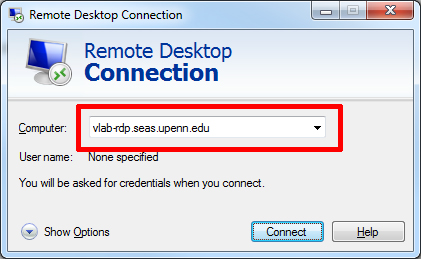
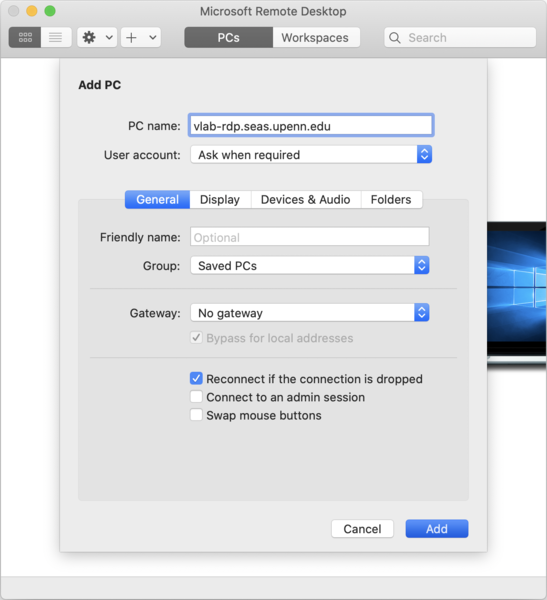
- Start your remote desktop client and connect to: vlab-rdp.seas.upenn.edu
- Log in with your PennKey username and password.
How do I log into the Virtual PC Lab from Windows?
Microsoft Remote Desktop is included in Windows. You can access it through the Start menu under one of these locations:
- Start:Programs:Accessories:Remote Desktop Connection
- Start:Programs:Accessories:Communications:Remote Desktop Connection
- Start:All Programs:Accessories:Remote Desktop Connection
How do I log into the Virtual PC Lab from macOS?
The macOS version of Microsoft Remote Desktop is available from the Mac App Store:
How do I log into the Virtual PC Lab from Linux?
Please check the website for your Linux distribution for information about rdesktop, the remote desktop client for linux. On CETS Linux machines, this should work:
rdesktop vlab-rdp.seas.upenn.edu
For full screen, add the -f option and use CTRL+ALT+ENTER to leave full screen mode.
Why am I getting an Unable to connect error?
If you are connecting from an external network, you must first install the University VPN and create a connection.
Why am I getting a protocol error?
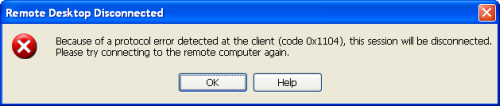
If you get the error above, here are the steps for correcting it:
- Open the Remote Desktop Connection software.
- Click on Options >>
- Select the Local Resources tab
- Under "Local resources and devices" click on the More... button.
- Make sure the following items are unchecked:
- Smart Cards
- Serial Ports
- Drives
- Supported Plug and Play devices
- Click OK. You should now be able to connect successfully.